Linking or Deleting Duplicate Patients
If a new patient is added to PatientBase and the patient’s First and Last name already exists in the database, a message displays that this may be a duplicate. Unwanted duplicate patient records may also exist due to merging data when joining the Cloud, misspelling of names, etc. When this happens, PatientBase provides two options for managing duplicate records: linking to another patient record or deleting.
When databases are merged, if PatientBase discovers patients with identical Last and First Names and birthdates, PatientBase automatically links them. The parent record is the patient with the most recent session or modified date. These patients can be unlinked if desired.
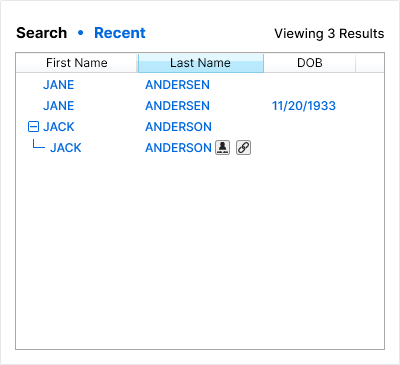
Linking Duplicate PatientsLinking Duplicate Patients
Linking joins the parent and child records together to display all sessions under the main patient but doesn't delete the child record. Child records can only be viewed and not selected for fittings.
- Search and select the main patient record to link to another record.
- Click the Patient Profile tab.
- Click
 Link Duplicate Patient.
 - Search and select the patient to link to the current patient and a link preview displays.
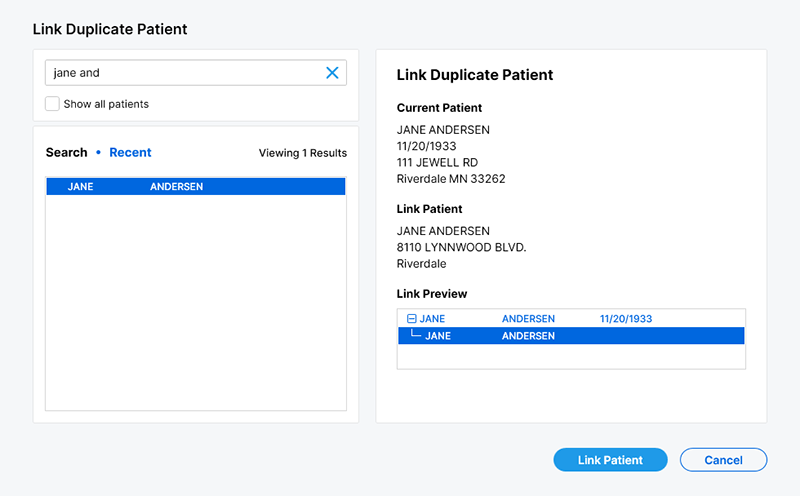
- Click Link Patient and the records are now linked together and displayed as one joint record.
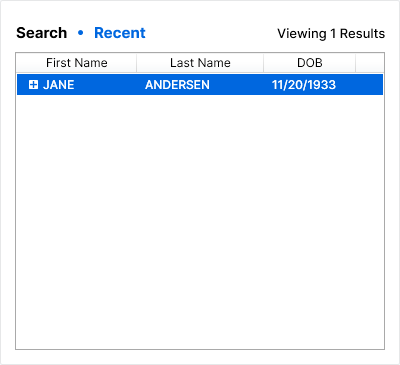
Note: To merge the sessions with the parent record and delete the child record, see Merging Sessions. To unlink patients, see Unlinking Patients.
Merging SessionsMerging Sessions
- Search and select the parent record to merge.
- Click
 to show linked records.
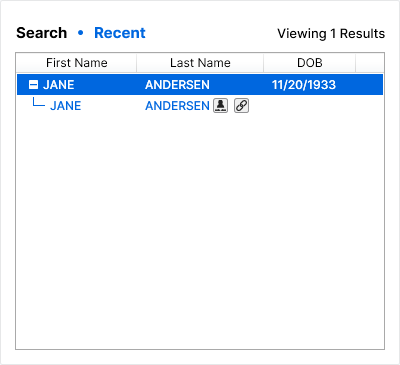
- Click
 and a message appears asking you to confirm the merge.
Note: Merging patient records deletes the child record once the merge is complete and this process cannot be undone. - Click Yes to merge the sessions with the parent record and delete the child record, or click No to cancel the merge.
Unlinking PatientsUnlinking Patients
- Search and select the parent record to unlink.
- Clickto show linked records.
- Click
 and a message appears asking you to confirm the unlink.
 - Click Yes to revert back to two individual patient records, or click No to cancel the unlink.
Deleting a PatientDeleting a Patient
- Search and select the patient to delete.
- Click
 Delete and a message appears asking you to confirm the deletion.
 - Click Yes to delete the patient and all their data from the database, or click No to cancel the deletion.