PatientBase Audiogram
An audiogram module is provided with PatientBase to record audiometric data used for targets during a fitting session. The module provides a clear, easy way to enter and view audiometric data. Threshold data can be entered for Air Conduction (AC) unmasked and masked, Bone Conduction (BC) unmasked and masked, and Uncomfortable Loudness Level (UCL). Data can be entered either by pointing and clicking on the graphs or by numerical entry. Pure Tone Average (PTA) is automatically calculated once data is entered at 500, 1000, and 2000 Hz. Speech MCL/UCL results and notes can also be entered.
- Search and select the patient to test.
- Click
 Audiogram on the Connect screen or Top Toolbar in Pro Fit and the View Audiogram screen displays.
 - Click Edit Audiogram and the PatientBase Audiogram Module opens in edit mode.
- To enter test results, click on the desired test type (e.g., AC, BC, etc.) and click on the desired points on the graph. Repeat this step for additional test types, if applicable.
- To copy the results of the test entered from one side to the other, click on the desired test type (e.g., AC, BC, etc.) and click Copy >> to copy right to left, or click << Copy to copy left to right. Repeat this step for additional test types, if applicable.
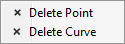
- If the results were not entered correctly, click Clear Right or Clear Left to clear the entire graph, or right-click on a point and click Delete Curve to delete the curve, or click Delete Point to delete the point
 .
. - To indicate masking, click on the desired test type (AC or BC), click Masked, and then click on the desired points on the graph. The results will be plotted with Masked symbols.
Note: If a test result was entered previously at a specific frequency point (e.g., 2000 Hz) and that same point is clicked to indicate 'masking' for the same test (e.g., AC), the previous symbol is removed. Click on that same frequency point again to display a Masked symbol. - To indicate no response, click on the desired test type (e.g., AC, BC, etc.), click No Response, and then click on the desired points on the graph. The results will be plotted with No Response symbols.
Note: If a test result was entered previously at a specific frequency point (e.g., 2000 Hz) and that same point is clicked to indicate 'no response' for the same test (e.g., AC), the previous symbol is removed. Click on that same frequency point again to display a No Response symbol. - To enter the test results manually, click
 to expand the Numeric View section if not currently expanded.
 - Click in the desired field and enter the result. Press the Tab key to move to the next field.
Note: As test results can only be displayed on the graph at 5 dB intervals, numeric results are rounded to the nearest 5 dB. - To indicate masking, enter the result and then click in another field. Click back in the field, press the letter ‘m’, click in another field, and an ‘M’ appears signifying Masked
 .
.
Note: To remove masking, click in the masked field , press the letter ‘m’, click in another field, and the ‘M’ disappears. - To indicate no response, enter the result and then click in another field. Click back in the field, press the letter ‘n’, click in another field, and an ‘NR’ appears signifying No Response
 .
.
Note: To remove no response, click in the no response field , press the letter ‘n’, click in another field, and the ‘NR’ disappears. - To enter speech test results, click to expand the Speech Testing section.
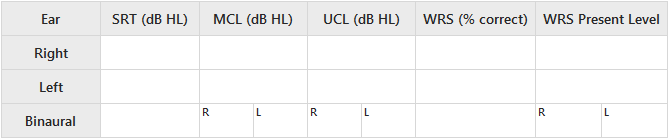
- Click in the desired field and enter the result. Press the Tab key to move to the next field.
- To enter notes, click to expand the Notes section.
- Click in the field and enter the notes.
Note: These notes are not saved with the audiogram but can be edited during the current session. If the Audiogram Report is printed during the current session, these notes print on the report. - Click Save & Print to save and print the audiogram, or click Save as New to save the audiogram.
Note: Audiograms are always saved as new audiograms. Clicking 'Save & Print' or ‘Save as New’ creates an entry in the Sessions tab under the current date. The username of the person that entered the audiogram along with a time stamp is listed in the session. If the audiogram is saved and later edited and saved again on the same date, another entry is created in the Sessions tab under the current date. The previously saved entry is not overwritten. If no audiogram data was entered and 'Save & Print' is clicked, a blank audiogram prints, and no session entry is created. Tip: See Audiogram Report in Pro Fit for more information. Edit the audiogram header in the Reports Preferences in Pro Fit. - The Audiogram prints your Report Header and the Patient's Name, Birthdate, and Date of Test if selected in Reports Preferences. A field for the Tester's name is available to be handwritten.